Modmath | Math You Can Hear: Screen Reader Support and Other Accessibility Features in Modmath
August 18, 2026 · Jonathan
Math has always been one of the hardest subjects to make accessible. Most digital math tools draw equations as pictures on the screen, and to a screen reader a picture is silence. We built Modmath differently. Every problem you write in a Modmath workbook is real math that your screen reader can read aloud, describe in detail, and now even help you solve. Here is what is available today, how to turn it on, and how to use it.
What Your Screen Reader Reads
Open any Modmath workbook with your screen reader running and the whole worksheet is readable, in order, problem by problem. Nothing to configure. Each problem is described in plain language, the way a teacher would read it to you. That includes the parts of math that are usually invisible to screen readers:
- Worked arithmetic. When a problem is set up in columns, Modmath describes the columns, the rows, and the work itself. Carries are read aloud. When a digit is crossed out and rewritten for regrouping, you hear the new value and what it used to be.
- Long division. The divisor, the dividend, the quotient so far, and each step of the work are all described.
- Fractions, variables, exponents, and roots are read as proper math, not as a string of mystery symbols.
- Images and graphs on the page are announced too, so you always know what is on the worksheet.
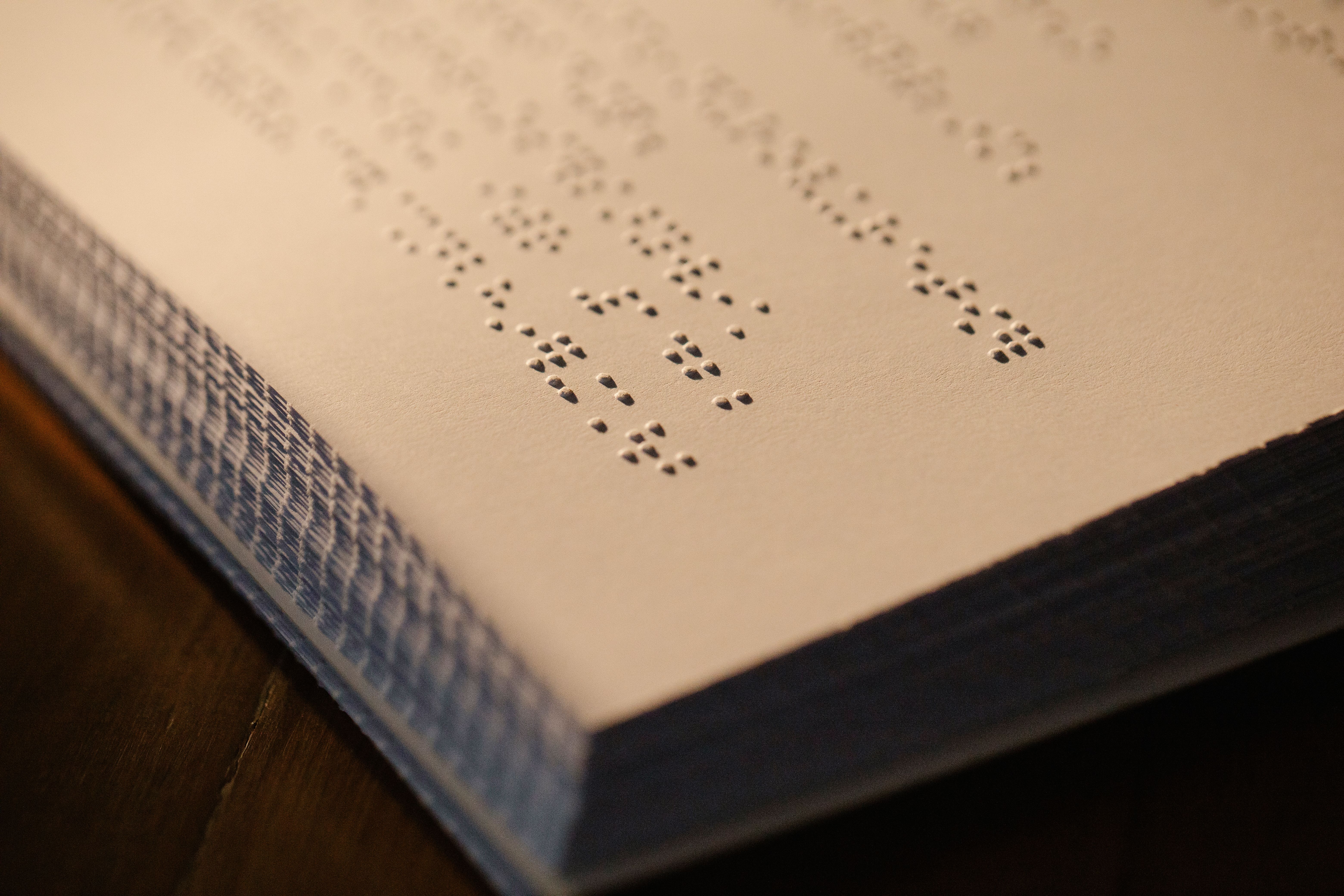
Modmath also presents your math in a standard format that math aware screen readers and braille displays understand, so if your setup supports math reading, you get real math on your braille display in your preferred braille code.
Turning On Interactive Navigation (In Testing)
Reading is only half the story. Our newest feature, Interactive navigation, lets you move through a worksheet and solve problems entirely from the keyboard. To turn it on:
- Sign in to Modmath.
- Open your account settings and choose Accessibility.
- Find the Screen reader section and turn on Interactive navigation (beta).
While you are there, you can also set your Speech detail level. Choose Brief, Standard, or Detailed depending on how much you want to hear.
How To Navigate And Solve
With Interactive navigation on, open a workbook and press Tab until you reach the worksheet. From there:
- Up and Down arrows move between problems. Each problem announces itself with a short summary, for example: Problem 2 of 3. 47 plus 85, addition, in progress.
- Enter opens the problem you are on. Now the arrow keys move cell by cell through the problem. Each cell tells you its value, its place value, and its row, for example: 7, ones column, second addend.
- Enter on a cell lets you type into it. Type a digit and it is written into the problem, exactly as if you had tapped it on the keypad. The cursor advances automatically, and each new cell is announced.
- C adds a carry at your current column. You will be prompted, you type the digit, and Modmath confirms it, for example: carried 1 to the tens column.
- B is the regrouping tool. It crosses out the digit you are on so you can write the new one. Modmath announces the change, for example: 3, was 4. Press B again to undo the regrouping.
- Escape steps back out, from the problem to the worksheet, so you can move to the next problem.
That is the whole loop. Browse the page, pick a problem, move to a box, write your numbers, carry and regroup, and hear your work confirmed at every step.
Braille Export (Beta)
With the beta turned on, you can also copy a worksheet as braille. Open the File menu and choose Copy as Nemeth (beta). Your work is copied as braille cells that you can paste into a document, share with a teacher, or send to an embosser. You can choose Nemeth or UEB technical as your preferred code in the Accessibility settings.
If You Use A Keyboard But Not A Screen Reader
Interactive navigation is designed to be used together with a screen reader, which announces each problem and cell as you move. And now this includes a visual navigation mode, so if you use the keyboard without a screen reader you will see the movement on screen. Visible keyboard navigation for sighted users lets you see exactly where you are on the canvas while the screenreader reads alout. Additionally, the Accessibility settings include two visual options: a larger keypad and darker grid lines.
A Note On The Beta (In Testing)
We call this a beta honestly because we are testing this feature. The reading and navigation work today with popular screen readers such as VoiceOver, JAWS, NVDA, TalkBack, and ChromeVox, and we are actively testing across all of them. We are also working with teachers of students with visual impairments to refine the wording, the navigation, and the braille output before we take the in testing label off. Some phrasing and translation may not be perfect yet.
That is exactly why we want to hear from you. If something reads wrong, navigates strangely, or could simply be better, tell us at support@modmath.zendesk.com. Feedback from real screen reader and braille users shapes this feature more than anything else.
What Is Next
We are continuing to expand accessibility across Modmath, including deeper braille support and, further out, voice input so you can speak your math as well as hear it. Math should be for everyone. We mean that literally.